If your Click & Grow light isn't working, the fix is usually one of four things: a power connection that isn't seated properly, a timer cycle that got confused after an unplug, a lamp module that needs reseating, or a reset that clears whatever glitch crept in. Most people solve it in under 10 minutes without needing new parts. Start with the checklist below, then work through whichever section matches your symptom.
Click and Grow Light Not Working: Troubleshoot Fast

Marcus Tillman
26 Apr 2026
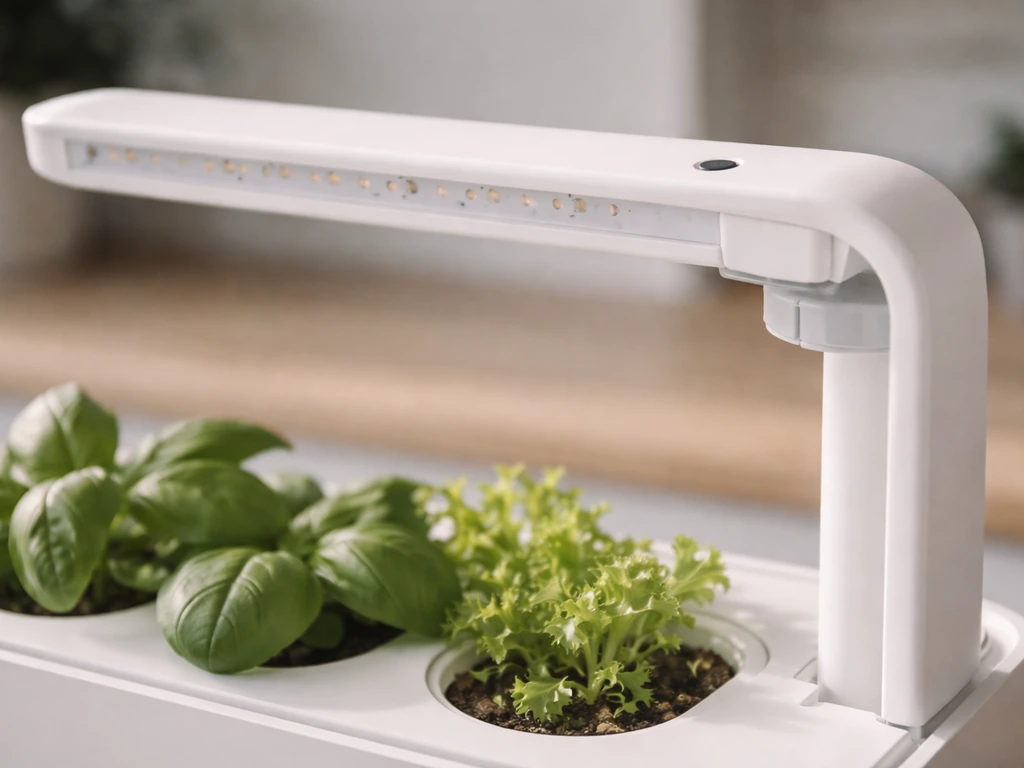
First, figure out exactly what 'not working' means
Before you start pulling cables, narrow down what you're actually seeing. Click & Grow light problems fall into a handful of distinct categories, and each one points to a different fix. Running through this quick checklist takes about 60 seconds and saves you a lot of guesswork.
- No light at all, and the power indicator (green light on models like the Click & Grow 25) is also off — points to a power supply or connection problem
- No light, but the green power indicator IS on — the lamp module or its cable is the likely culprit, not the power source
- Light turns on but is noticeably dim — could be a failing LED, wrong placement, or a dirty/obstructed lamp housing
- Light flickers or works irregularly — Click & Grow officially flags this as a timer or controller malfunction that usually clears with a reset
- Light takes much longer than usual to come on (20+ seconds instead of the normal 2 seconds on Bluetooth models) — indicates a firmware or connectivity issue, not a hardware failure
- Light is on but plants look pale, leggy, or aren't growing — the light is functioning but placement, schedule, or coverage needs adjustment
- Light used to work on a schedule but now seems to come on randomly or not at all — timer cycle got disrupted, likely after a power interruption
Got your symptom pinned down? Good. Now let's check power first, because that rules out the most common cause immediately.
Power and wiring checks
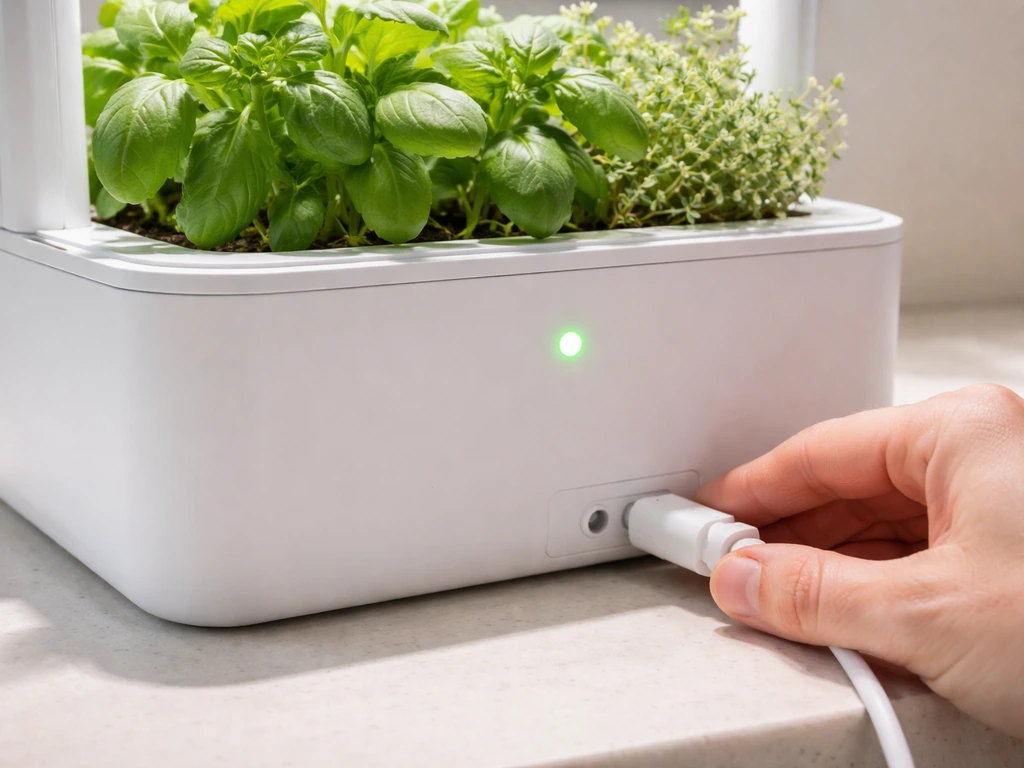
Power problems are responsible for the majority of 'my light won't turn on' complaints, and they're almost always fixable without any tools. Work through these steps in order.
- Check the green indicator light on your unit. On the Click & Grow 25, a green light that's on and stable means the device is receiving power. No green light means no power is reaching the unit — stop here and keep troubleshooting the supply before anything else.
- Unplug the unit completely and wait at least 2 hours before plugging it back in. This is Click & Grow's own recommended reset for power-related and timer-related issues, not just a generic suggestion.
- When you plug back in, use a different wall outlet. Faulty outlets are more common than you'd think, and this one test rules them out instantly.
- Try bypassing any intermediate cables or extension cords. Plug the power cable directly into the wall outlet. If the light comes on, the problem is in the intermediate cable, not the lamp.
- Check every cable connection point — the adapter, the cable running to the control module, and the lamp cable connections. On the Click & Grow 25 specifically, the control module cable runs through hooks in the frame and needs to be fully seated in the socket. If it feels loose at any point, that's your problem.
- For the Click & Grow 25 with two lamp modules: disconnect one lamp cable from its outlet and move it to the middle outlet. Repeat for the second lamp. If one lamp works in one outlet but not another, you've isolated either a bad outlet on the unit or a bad lamp cable — both are replaceable.
The Click & Grow 25 runs two 16W LED lamps (32W total), so if only one lamp is out while the other works fine, the fault is almost certainly isolated to that lamp's cable or connector, not the whole system. That's actually good news because it means you need one replacement part, not a whole new unit.
Setup and compatibility basics
Click & Grow makes several distinct systems, and their troubleshooting steps, reset procedures, and spare parts are NOT interchangeable. This trips people up constantly. Before you follow any fix you read online, confirm which model you actually have.
- Click & Grow 25 — large floor-standing unit with two 16W LED lamps and a dedicated control module; has its own separate troubleshooting guide and cable replacement kit
- Smart Garden 3, 9, and 9 Pro — countertop units with an integrated lamp arm; the 9 Pro has Bluetooth connectivity and a different reset process
- Wall Farm — wall-mounted system with LED panels; uses similar white and red LED technology but has different mounting and compatibility considerations
All Click & Grow systems use a combination of white and red LEDs, but the modules, cables, and control hardware are model-specific. A lamp module from a Smart Garden 9 will not work in a Click & Grow 25. If you've recently swapped any part or bought a replacement online, double-check that it's rated for your exact model.
For Bluetooth-enabled models like the Smart Garden 9 Pro, also check that your app and firmware are up to date. A lamp that takes 20 seconds or more to turn on (versus the normal 2 seconds) is a sign the Bluetooth connection or firmware needs attention, and a factory reset is the recommended fix. More on that reset process below.
One more thing on setup: the pod/cartridge configuration doesn't directly affect whether the light turns on, but make sure the grow pods are seated correctly. A pod that's wedged at an odd angle can occasionally put mechanical stress on the light arm or housing on smaller Smart Garden models, which could interfere with connections over time.
Placement and hardware factors
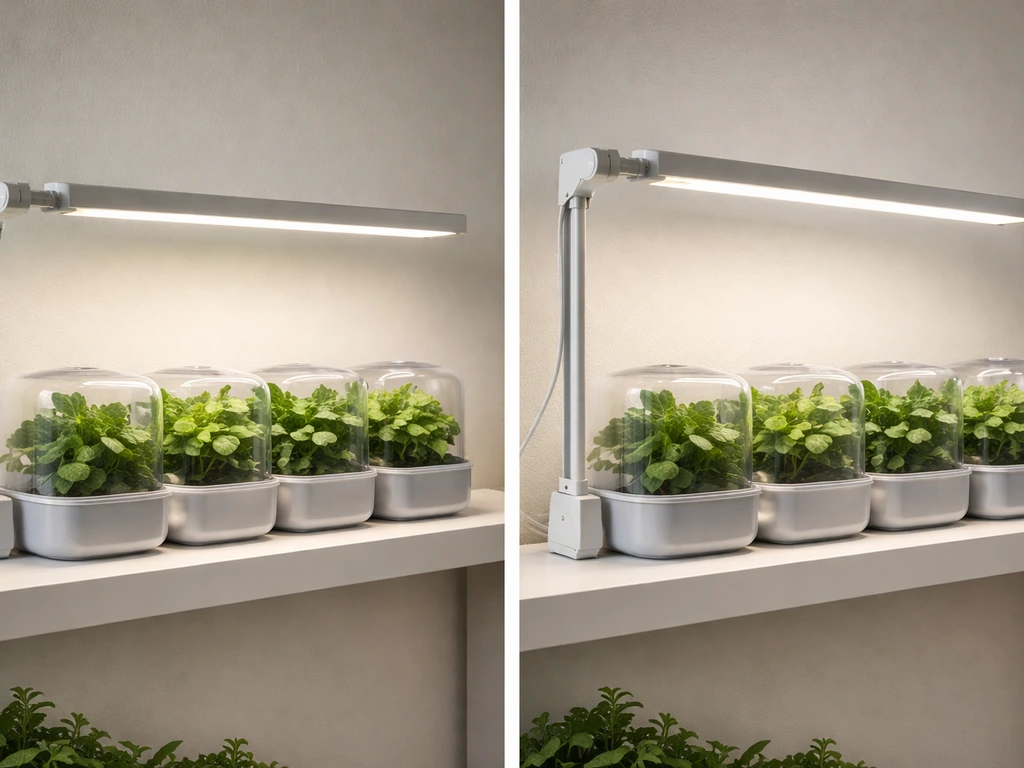
Sometimes the light is technically 'working' but it looks wrong, or your plants aren't responding the way you'd expect. Placement and physical hardware issues are the usual cause here.
Height and distance
Click & Grow's integrated light arms are designed to stay at a set distance above the pods as the plants grow. If you've adjusted the arm and accidentally moved it too far from the pods, the plants won't get enough light intensity even though the LEDs are running fine. On Smart Garden models, the arm should sit no more than a few inches above the tallest plant. If you notice the light seems dim even though it's on, checking and adjusting the arm height is worth doing before anything else in this section. There's more detail on this in a guide specifically about how to tell if a grow light is too close, which is worth cross-referencing if your plants show light stress signs.
Lamp housing and reflector
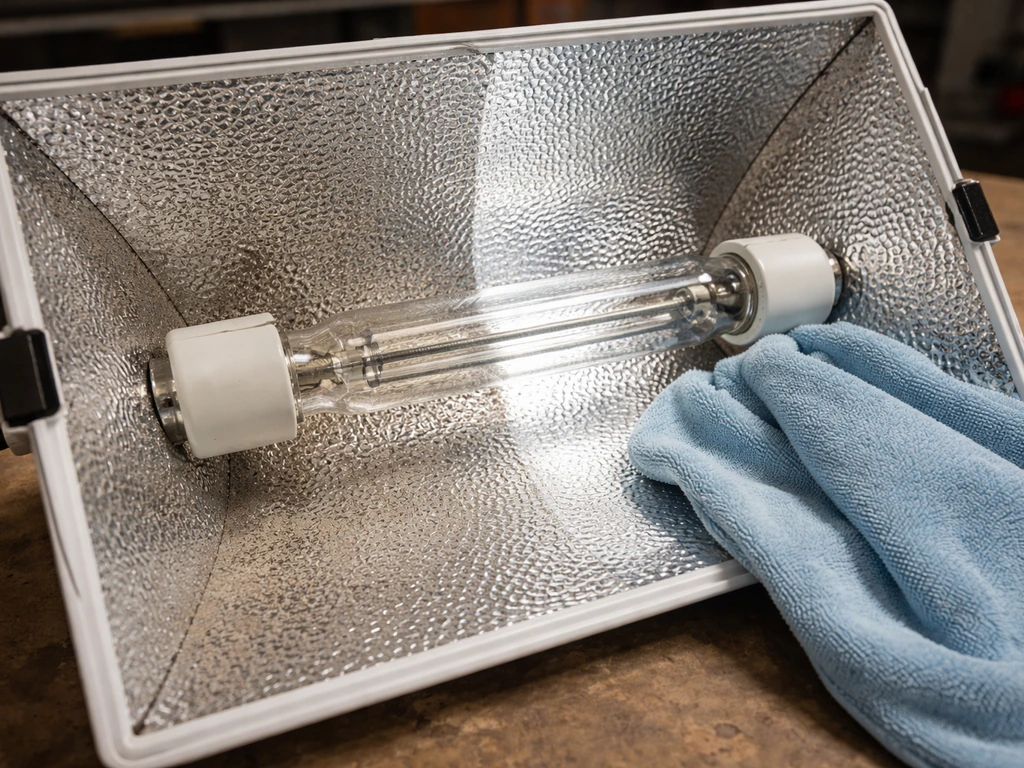
Check the lamp housing for dust buildup, debris, or any physical obstruction. A dirty reflector can cut effective light output noticeably. Wipe the inside of the lamp housing with a dry cloth if there's visible dust or residue. Also check that the lamp housing isn't cracked or warped, physical damage to the reflector bowl reduces coverage and can create hot spots.
Coverage area
Every Click & Grow model has a specific pod count it's designed to light evenly. The Smart Garden 9 covers 9 pods; the Click & Grow 25 covers 25. If you've tried to expand coverage beyond what the unit is designed for (say, by clustering extra pots around it), the outer plants won't get adequate light. The fix is matching your plant count to the unit's actual coverage, not adding supplemental light on top of a system that's already working fine.
LED and function testing: dim, flickering, or stays off
Once you've confirmed power is reaching the unit, the next step is figuring out whether the LEDs themselves are the problem or whether it's the controller. These are different faults with different fixes.
If the light is dim
Dim output on a unit that used to be bright usually means the LEDs are aging. Click & Grow uses white and red LEDs in all their systems. Red LEDs tend to fade before white ones, and you might notice the overall color of the light shifting slightly warmer or more yellow-white as the red LEDs degrade. If the unit is several years old and the dimming has been gradual, this is normal LED aging rather than a fault. Replacement of the lamp module is the fix here, not a reset.
If the light flickers or works irregularly
Flickering is something Click & Grow specifically flags as a malfunction symptom, and their recommended fix is a full unplug reset: leave the unit unplugged overnight (or at least 2 hours), then plug it back into a different outlet. If flickering continues after that reset, the issue is likely a failing lamp module or a fault in the control module, and you'll need to isolate which one. On the Click & Grow 25, use the outlet-swap test described in the power section above to find out whether the fault follows the lamp cable or stays with the outlet. If you're seeing general light flickering that seems separate from the timer issue, it's also worth looking at why grow lights flicker, since some flickering causes are shared across different systems. Some of the most common flicker causes across grow setups are loose power, driver issues, and incorrect fixture placement why grow lights flicker.
If the light stays off despite power being confirmed
If the green indicator is on but no light is coming from the lamp, try disconnecting and reseating the lamp cable at both ends. On the Click & Grow 25, this means removing the cable from the control module socket and from the lamp housing, then refitting it firmly. If reseating doesn't help, swap the suspect lamp cable with the working one (on a two-lamp unit) to confirm whether the fault is in the cable or the lamp itself.
Reset and restart steps, matched to your symptom
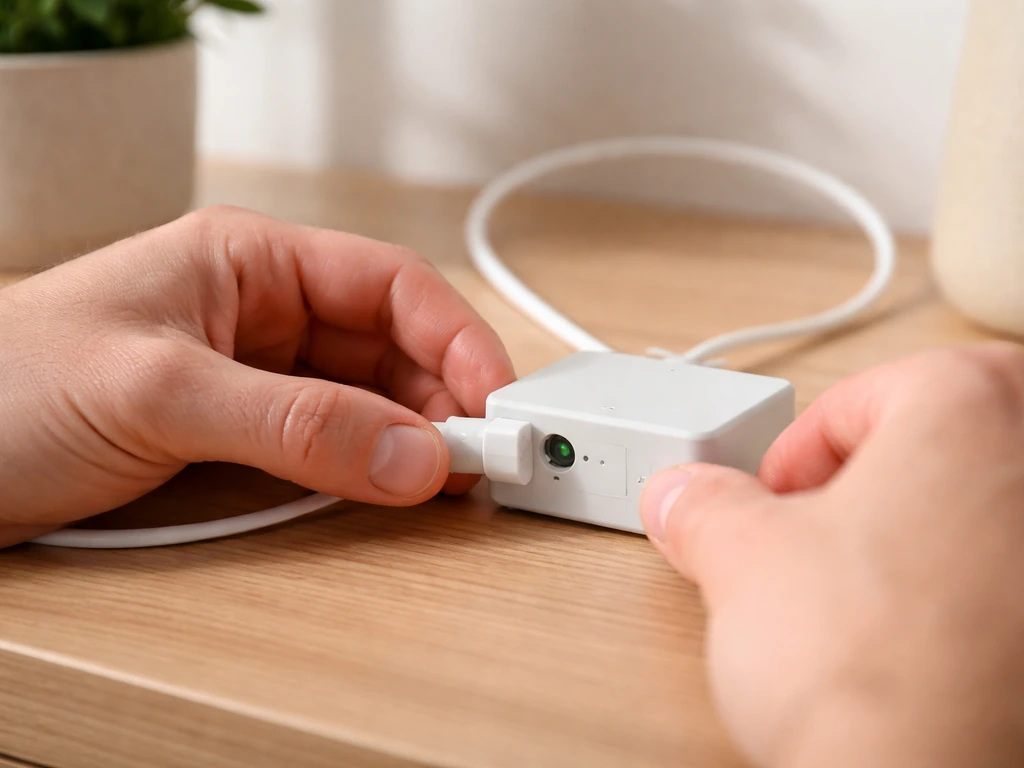
Here's a quick reference for which reset approach to use depending on what you're seeing. Note that Click & Grow's reset procedures are model-specific, not universal.
| Symptom | Model type | Recommended reset / fix |
|---|---|---|
| Light flashing or working irregularly | All Smart Garden models | Unplug overnight (minimum 2 hours), plug into a different outlet |
| Timer schedule seems off or light comes on at wrong times | All Smart Garden models | Unplug for at least 2 hours; timer restarts its automatic cycle from scratch each time you plug in |
| Lamp slow to turn on (20+ seconds vs normal 2 seconds) | Smart Garden 9 Pro (Bluetooth) | Perform a full factory reset via the app; check Bluetooth connection and firmware |
| No light, green indicator off | Click & Grow 25 | Unplug for 2 hours; plug directly into wall outlet, bypassing any extension; check all cable connections |
| One lamp out of two not working | Click & Grow 25 | Swap lamp cables between outlets to isolate fault; reseat or replace cable if fault follows the cable |
| Light on but dim | Any model | Check lamp age; clean housing; consider lamp module replacement if unit is 2+ years old |
One thing to keep in mind about the timer reset: every time you unplug a Click & Grow Smart Garden and plug it back in, the automatic light schedule starts over from that moment. So if you plug it in at 11pm expecting it to follow the previous on/off cycle, it won't. The new cycle begins from the moment of that plug-in. This is working as designed, not a bug, but it confuses a lot of people who expect the previous schedule to resume automatically.
Light schedules, timers, and growth settings
Click & Grow's standard Smart Garden models (non-Pro) don't have an app-controlled schedule. The timer is built into the hardware and runs an automatic cycle that restarts every time you plug in. If your light 'schedule' seems wrong, the most common cause is that someone unplugged the unit (even briefly during cleaning or moving) and the cycle restarted from that new plug-in time.
For the Smart Garden 9 Pro with Bluetooth, you can set and adjust the schedule through the Click & Grow app. For Smart Garden 9 PRO (Bluetooth) model-specific troubleshooting and reset guidance, Click & Grow lists steps in their Help Desk section for this model Smart Garden 9 Pro with Bluetooth, you can set and adjust the schedule through the Click & Grow app. If the app shows the light as scheduled to be on but the lamp isn't responding, run through the Bluetooth-specific reset steps: close the app, restart it, check that your phone's Bluetooth is on, and confirm the lamp firmware is current. A factory reset through the app resolves most persistent connectivity issues on the Pro model.
If your light is working fine but your plants don't seem to be responding (slow growth, pale color, long stems), the issue usually isn't the light schedule itself. It's more often the light distance or the pod placement. Leggy, stretching plants are a classic sign the light is too far away or the schedule is too short. Yellowing with good stem structure often points to nutrient or water issues, not light. The light working correctly is actually the easiest part to confirm.
When to contact Click & Grow support or replace a part
You've run through the resets, checked all the connections, isolated the fault with the swap test, and the problem is still there. Here's how to decide what to do next.
- If the fault follows a specific cable (it fails in one outlet but works in another), order a replacement control module cable for your exact model. For the Click & Grow 25, this is included in the official cable replacement kit.
- If the fault stays with a specific lamp outlet regardless of which cable you use, the fault is in the control module itself. Contact Click & Grow support before ordering parts, as this may be covered under warranty.
- If both lamps are completely dead and no green power indicator comes on despite trying different outlets and cables, the power adapter is the most likely culprit. Try the adapter on a known-good outlet; if it still doesn't power up, replace the adapter.
- If the unit is within warranty (Click & Grow's standard warranty varies by model but is typically 1-2 years from purchase), contact their support team before buying replacement parts. They're generally responsive and will often send replacement components for verified faults.
- If the unit is out of warranty and multiple components have failed, weigh the repair cost against a new unit. Lamp modules and cables are relatively affordable. A failed control module on an older Click & Grow 25 might make less financial sense to repair than to replace.
- If your light flickers persistently after all resets and cable checks, don't ignore it long-term. Persistent flickering on any grow light system (not just Click & Grow) is worth addressing promptly, as it can stress plants even when the light appears to be 'on.'
To contact Click & Grow support, go through their official help desk rather than third-party retailers. Have your model number, purchase date, and a clear description of the symptom (including which resets you've already tried) ready before you reach out. This speeds up the process considerably and helps them get to a resolution faster. If you've already done the outlet-swap test and can tell them exactly which component the fault is isolated to, even better.
FAQ
After unplugging, does the Click and Grow schedule resume where it left off?
No, for Smart Garden models the schedule restarts from the moment you plug it back in. If you want it back on a specific routine, note the plug-in time and then adjust pod/plant care expectations to that new start window.
My Click and Grow light turns on but only part of the light works, what should I check first?
If one lamp works and the other does not (on the Click and Grow 25), confirm the symptom follows the cable by reseating both ends, then do a swap with the working lamp cable. That isolates whether you need a lamp module versus a cable.
The green indicator is on, but the lamp will not light, should I try a reset right away?
Try reseating the lamp cable at both ends first. A reset can clear glitches, but if the lamp cable connection is loose or stressed, reseating often restores operation immediately, saving you from repeated resets.
How long should I leave the unit unplugged for a flickering reset?
For flickering, leave it unplugged overnight or at least 2 hours, then plug it into a different outlet. The outlet change matters because it helps confirm whether the driver power is unstable versus the lamp or control hardware.
I moved my grow pods or added extra pots, could that affect whether the unit works correctly?
It can affect performance even if the LEDs run. Click and Grow units are designed for a specific pod count, if you exceed that, outer plants may receive insufficient coverage and look underlit even though the system appears to be functioning.
What arm height should I use if my light looks dim even though it is on?
Re-check the light arm distance. On Smart Garden models, the arm should be no more than a few inches above the tallest plant, if it is set too high the LEDs can run but intensity drops enough for slow growth or light stress.
Can dust or residue inside the lamp housing cause the problem even if connections are fine?
Yes. A dirty reflector can reduce effective output noticeably and can mimic a failing module. Use a dry cloth to wipe visible dust inside the housing, and avoid wet cleaning that can leave residue.
If I notice my light is warming up in color over time, does that mean the LEDs are broken?
Not always. Red LEDs typically fade before white LEDs, so gradual color shift toward a warmer yellow-white can be normal aging. If dimming has been gradual over years, the usual fix is lamp module replacement rather than further resets.
My app shows the schedule, but the Pro lamp does not turn on, what is the fastest order of checks?
First confirm your phone Bluetooth is on and that the lamp firmware is current, then restart the app (close it, reopen), and only then run the Pro factory reset via the app. This order prevents losing schedule settings unnecessarily.
Which reset should I use, and can I follow resets meant for a different Click and Grow model?
Do not mix reset steps across models. Reset procedures, schedules, and supported spare parts are model-specific, and using the wrong procedure can leave you troubleshooting longer without actually addressing the underlying fault.
How can I tell whether the fault is in the outlet, cable, or controller?
Use the outlet-swap test described for power symptoms. If the issue follows the outlet when you move the unit, it points to power at the wall. If it follows the lamp cable or the non-working side during a swap test, it points to lamp module or cable.
Should I contact Click and Grow support before buying any replacement parts?
Yes, especially if you already isolated the fault with reseating and swap tests. Have your exact model number, purchase date, and which steps you tried ready, and include whether the fault follows the outlet or the lamp cable to speed up diagnosis.
Next Article
Innova Grow Light Instructions: Setup, Use, and Troubleshooting
Step-by-step Innova LED grow light instructions: setup, mounting, distance, schedules, intensity, and fast troubleshooti