When your grow light app or controller is stuck on screen and won't respond, the fix is almost always one of three things: a simple power cycle, a reconnect to your Wi-Fi or Bluetooth, or a firmware/app reset. Work through those in order and most people are back up and running in under 15 minutes. If none of that works, you're likely dealing with a hardware or firmware failure, and you'll need to contact support with a few key details in hand.
Grow Your Light Stuck on Screen Fix Guide

Marcus Tillman
2 May 2026
What 'stuck on screen' actually means for a grow light
Before jumping into fixes, it helps to know which type of 'stuck' you're dealing with, because the solution differs. There are really four common versions of this problem.
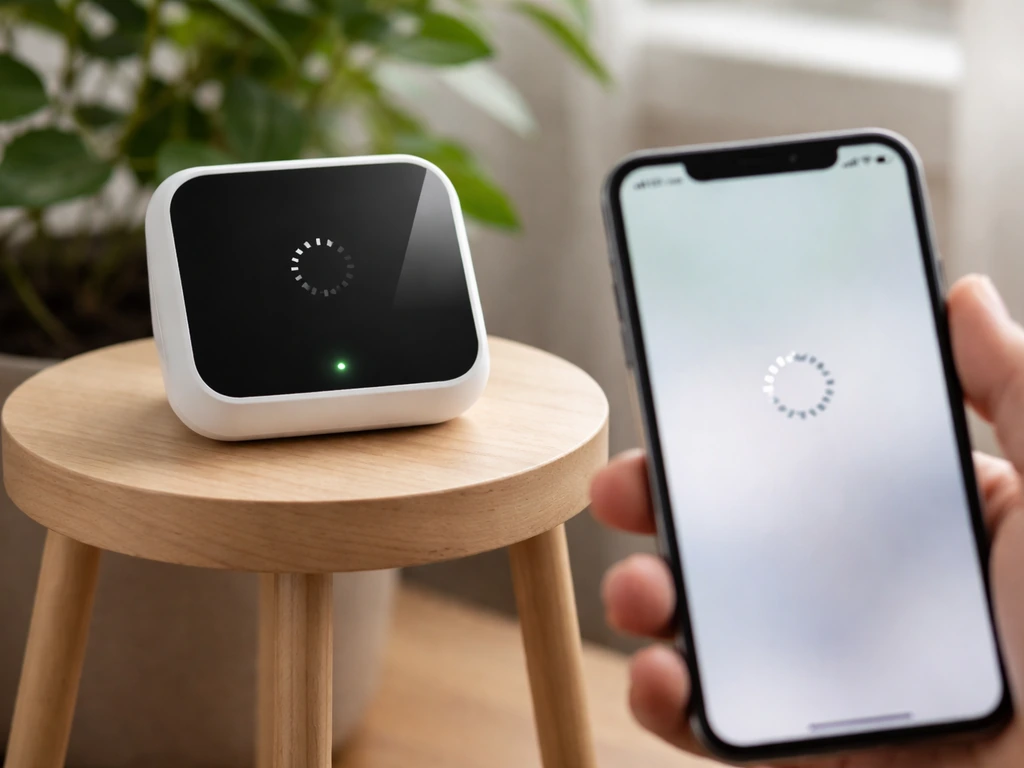
- App UI freeze: The companion app on your phone opens but gets stuck on a loading screen, a 'Grow your light' setup prompt, or a dashboard that never populates.
- Controller display stuck: The physical controller on your grow light unit shows a logo, a mode name, or a schedule screen that won't change no matter what buttons you press.
- Device stuck in a boot loop or startup screen: The light powers on, shows its startup animation or logo, then restarts over and over without ever reaching normal operation.
- Mode or schedule not loading: The light is technically on, but it ignores schedule changes, intensity adjustments, or mode switches from the app or controller.
Knowing which one you have tells you where to start. An app freeze points to your phone or network. A controller display issue points to the device itself. A boot loop almost always means a firmware problem. A schedule that won't switch is usually a connectivity or sync issue between the app and the device.
Fast checks before you reset anything
Run through these before touching any reset buttons. A surprising number of 'stuck' grow lights turn out to have a boring root cause that takes 30 seconds to fix.
- Check the power supply. Unplug the power brick or cable from the wall, wait 10 seconds, and plug it back in. Make sure the outlet itself is working by plugging in something else. Smart plugs and power strips with surge protection can silently trip and cut power to the device without any visible indicator.
- Inspect every cable. Check the cable between the driver/power supply and the light head, the cable between the controller and the driver, and the USB or barrel connector going into the controller. A loose connection at any of these points can cause a controller to freeze mid-cycle or fail to boot.
- Check your network connection. If your grow light uses Wi-Fi, verify that your router is online and that your phone is on the same network you used during initial setup. Many smart grow lights only work on 2.4GHz Wi-Fi, not 5GHz. If your router broadcasts a combined network, your phone may have switched bands.
- Look at the distance and placement. This sounds unrelated, but some smart lights have heat-related safety modes that lock the controller display if the unit gets too hot. If the light is unusually close to a reflective surface or enclosed in a tight space, heat buildup could be the trigger.
- Check what mode the device is in. Some controllers have a 'manual override' or 'demo' mode that ignores app commands entirely. A button accidentally held during startup can lock things into this state.
Restart and reset steps
If the fast checks didn't solve it, it's time for a proper restart sequence. Do these in order, testing after each step so you don't reset more than you need to.
Step 1: Power-cycle the grow light
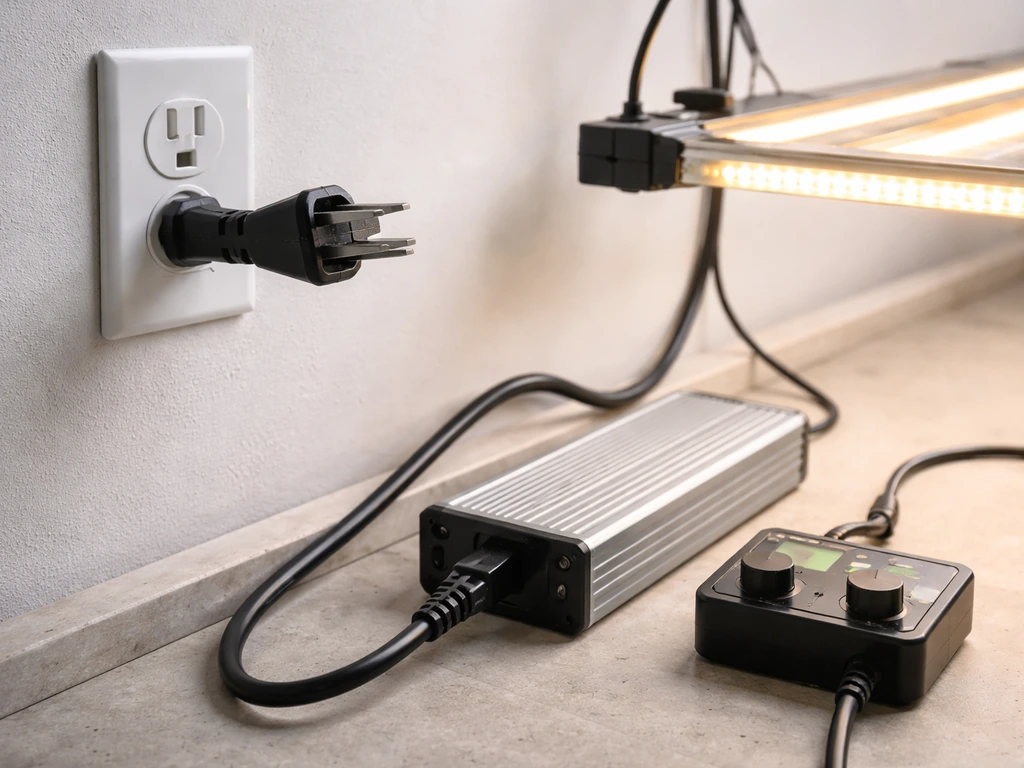
Disconnect the grow light from power at the wall, not just at the controller. Unplug the power supply unit (PSU) completely. Wait a full 30 seconds, not just 5. This gives capacitors inside the driver time to fully discharge, which is what actually clears the frozen state. Plug back in and watch the startup sequence. If it boots normally and reaches the home screen or default mode, you're done.
Step 2: Restart the controller separately
If your setup has a separate wired or wireless controller box (common on brands like Mars Hydro, AC Infinity, and similar), look for a small recessed reset button, usually pinhole-sized on the back or side. Use a paperclip or SIM tool, press and hold for 5 to 10 seconds until the display blinks or restarts. This reboots the controller firmware without wiping your saved schedules in most cases. Check the manual for your specific model to confirm.
Step 3: Restart the app
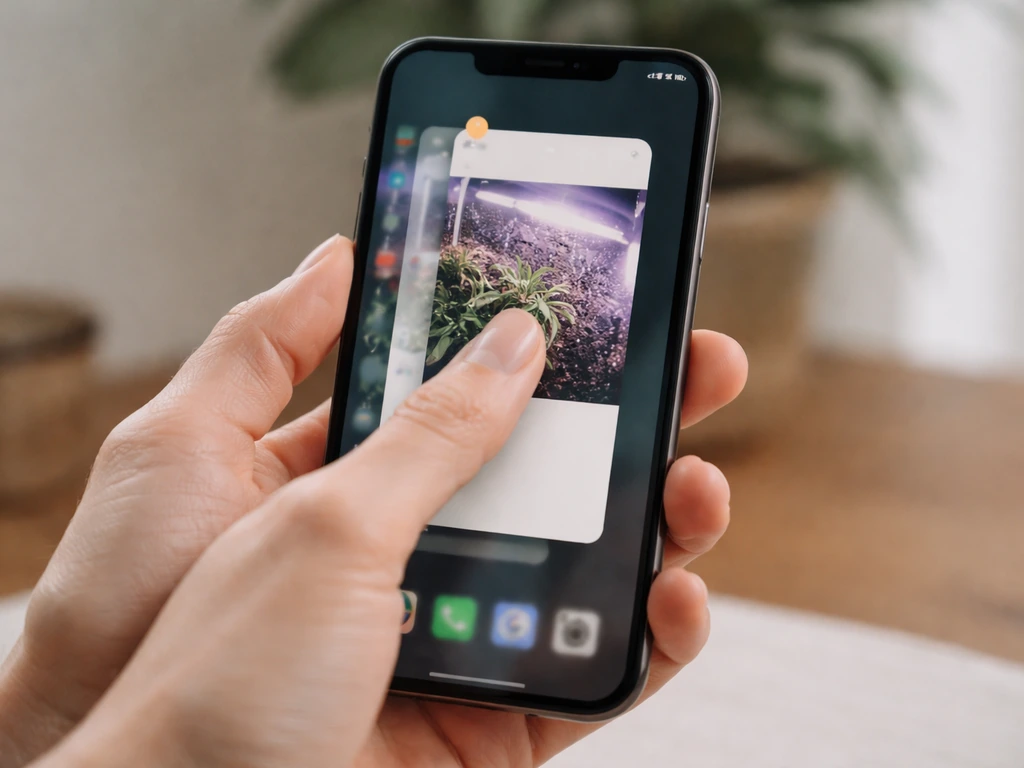
Force-close the grow light app on your phone entirely. On iOS, swipe up from the home bar and swipe the app card away. On Android, use the Recent Apps button and swipe it closed. Wait 10 seconds, then reopen the app. If the app was the source of the freeze, this is usually enough. Don't just tap the home button and reopen; the app needs to be fully terminated.
Step 4: Restart your phone
If the app is still frozen or won't connect after reopening, restart your phone. Bluetooth and Wi-Fi stacks on phones can get into bad states that only a full reboot clears. This step gets skipped constantly and solves the problem more often than it should.
Reconnect and resync
If restarting everything got the app and controller responsive again but they're still not talking to each other, you need to re-establish the pairing. This is where most people get stuck the second time.
Bluetooth pairing
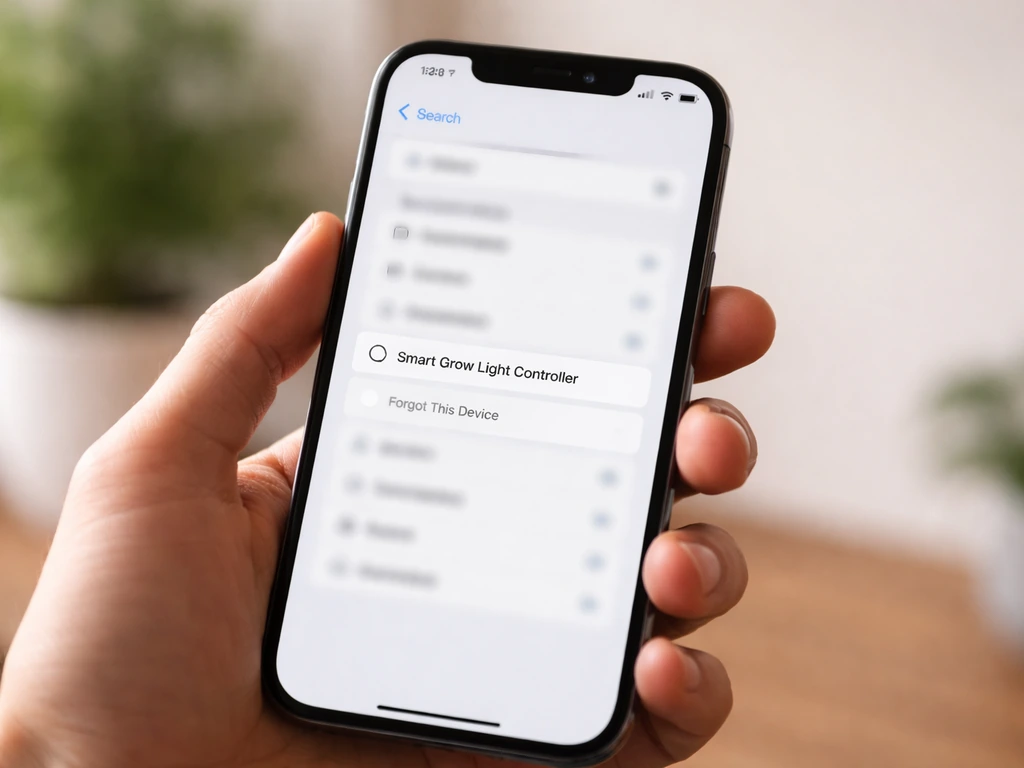
Go into your phone's Bluetooth settings (not just the app) and forget or unpair the grow light controller if it shows up there. Then go back into the app and use its built-in pairing/add device flow to reconnect from scratch. The app and the system Bluetooth stack can get out of sync if a previous pairing attempt failed halfway, and trying to re-pair inside the app without clearing the system-level pairing just makes it worse.
Wi-Fi pairing
For Wi-Fi connected lights, the single most common cause of pairing failure is the 2.4GHz vs 5GHz band issue. Check your router settings and confirm which band the device is connecting to. Smart grow light controllers almost universally require 2.4GHz. If your router uses a single combined SSID for both bands, temporarily connect your phone to a 2. If your router uses a combined SSID for both 2.4 GHz and other bands, some 2.4 GHz-only IoT devices can connect incorrectly, so GCI recommends special handling for the SSID/band setup during pairing blank" rel="noopener noreferrer">a single combined SSID for both bands. 4GHz-only network or create a separate 2.4GHz SSID in your router settings just for the pairing process. A troubleshooting guide explains that many smart devices use only 2.4 GHz, and blank" rel="noopener noreferrer">dual-band setups under one SSID can cause setup and association issues for devices that don’t support 5 GHz. Also make sure your router is using WPA-2 or WPA-3 Personal security, not an older WEP or enterprise-level WPA setting, which many budget smart home devices don't support.
If you recently changed your Wi-Fi password or swapped routers, the grow light controller still has the old credentials saved and will sit on a 'connecting' screen indefinitely. You'll need to factory reset the controller and go through the full setup flow again with the new network details.
App permissions
Check that the grow light app has all the permissions it needs. On iOS, go to Settings, find the app, and make sure Local Network access and Bluetooth are both enabled. On Android, check Location permission (required for Bluetooth scanning on Android 12 and later), Nearby Devices permission, and Wi-Fi access. A missing permission will cause the app to silently fail to find the device, which looks exactly like a frozen or stuck screen.
Firmware and app troubleshooting
If restart and reconnect haven't fixed it, the problem is likely in the software layer: outdated firmware on the device, a corrupted app install, or a date/time mismatch that's breaking the schedule logic. If your grow light is flickering instead of staying stuck on screen, the troubleshooting steps are different, and you should check the power supply, wiring, and driver compatibility first grow light flickering.
Check for firmware updates
Open the app and navigate to the device settings for your grow light. Look for a firmware version number and a 'check for updates' option. If an update is available, install it while the device is plugged in and do not close the app or kill power during the update. A firmware update interrupted midway is one of the main causes of a boot loop that won't recover on its own.
Clear the app cache or reinstall
On Android, go to Settings, then Apps, find your grow light app, and tap 'Clear Cache' first. Reopen the app and test. If it's still stuck, go back and tap 'Clear Data' (this will log you out and remove local settings), then reopen and log back in. On iOS, there is no separate cache-clear option, so if force-closing doesn't help, delete the app entirely and reinstall it fresh from the App Store. Your account data and device schedules are usually stored server-side and will repopulate after you log back in, but check the app's documentation to confirm this before deleting.
Check date and time settings
This one catches people off guard. Smart grow light apps use your phone's date and time to calculate sunrise/sunset schedules, timer triggers, and photoperiod cycles. If your lettuce grow lights are still not working after the reboot and pairing steps, focus on the app, permissions, and firmware update checks lettuce grow lights not working. If your phone's clock is wrong (even by a few hours due to a time zone error), or if your phone is set to manual time instead of automatic, the app's schedule engine can freeze on a transition it can't resolve. Go to your phone's date/time settings and make sure 'Set Automatically' is turned on. Then go into the grow light app and check whether your location or time zone is set correctly in the app's own settings.
Keeping your plants safe while you troubleshoot
Your plants can't wait indefinitely while you chase down a firmware bug. Here's how to keep them going during troubleshooting, even if the smart features aren't working. A grow light that’s too close can stress plants, so watch for rapid leaf yellowing, bleaching, or curled tips, and then raise the light and retest how to tell if grow light is too close.
- Switch to manual mode if possible. Most smart grow lights have a physical button or dial that bypasses the app and runs the light at a fixed intensity. Check your controller for a manual, M, or override button. Running at 50 to 75 percent intensity manually is better than no light at all.
- Use a cheap plug-in timer as a backup. A basic mechanical or digital outlet timer costs under $10 and can run your grow light on a fixed schedule (say, 16 hours on for seedlings, 12 hours on for flowering plants) without any app involvement. This is a solid interim solution while you sort out the smart features.
- Maintain your existing photoperiod as closely as possible. Sudden changes in light duration stress plants. If your light was running 14 hours on, try to keep the manual fallback close to that number rather than running lights all day.
- Watch for heat. Without the smart dimming and scheduling, a light running at full manual intensity for an extended period can get closer to your plants than intended. Keep at least 18 to 24 inches of distance for most LED grow lights, or check your model's recommended hanging height.
- Don't panic about one or two missed light cycles. Most plants, especially established ones, handle a day or two of irregular lighting without permanent damage. Seedlings are more sensitive, but even they will survive a short disruption if temperature and watering stay consistent.
When it's a hardware or firmware failure
If you've worked through every step above and the light is still stuck, frozen, or in a boot loop, you're most likely dealing with a hardware failure in the controller, a corrupted firmware flash, or a failed driver. These are not user-fixable in most cases. Here's what to do next.
Signs you're past the DIY fix point
- The device restarts itself repeatedly and never reaches the home/idle screen (boot loop).
- The controller display shows garbled characters, partial text, or stays completely blank after a power cycle.
- The light flickers uncontrollably or produces inconsistent output even in manual mode. (This is worth cross-referencing with grow light flickering issues, which can also indicate a driver problem.)
- The app detects the device but firmware update fails every time with an error.
- The device was dropped, got wet, or showed signs of overheating (discoloration, burning smell) before the problem started.
What to gather before contacting support
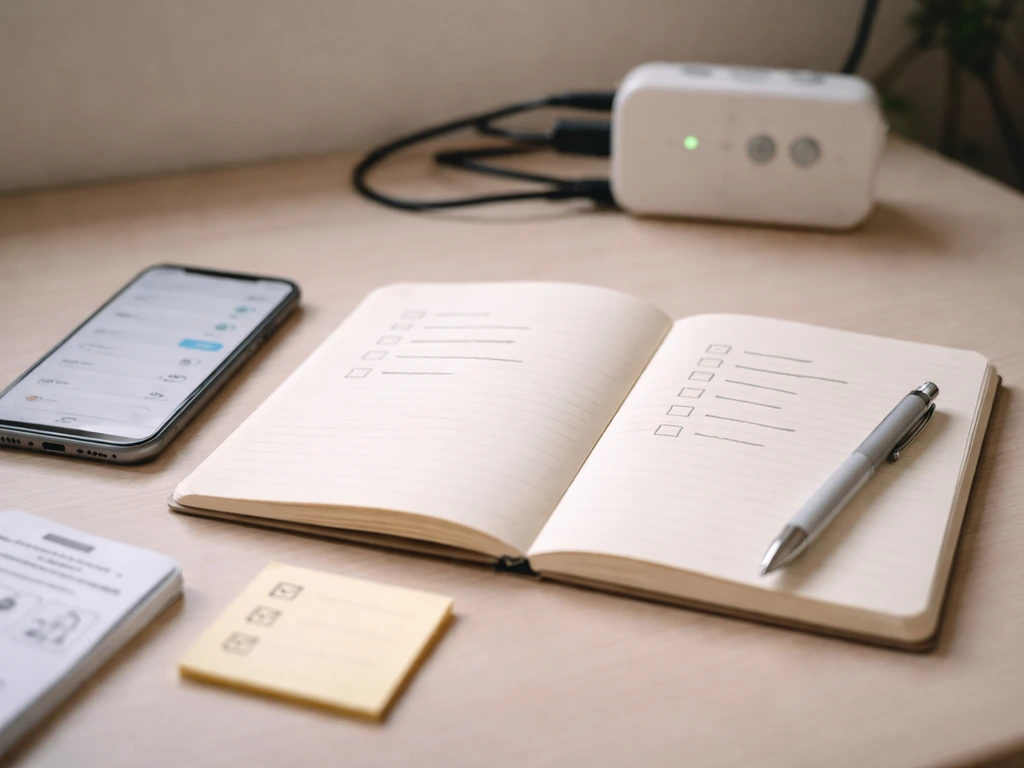
Support teams can help you much faster if you show up prepared. Collect the following before you reach out or submit a warranty claim.
- Model name and model number (on a sticker on the device or driver, or in the app under device info).
- Current firmware version shown in the app (even if it's partially readable).
- App version number (found in your phone's app store listing or the app's About screen).
- Screenshots or a short video of the stuck/frozen behavior, including what the screen shows and what happens when you interact with it.
- A description of what changed just before the problem started: new firmware update, new router, power outage, physical move of the light.
- Your Wi-Fi setup details: router brand, frequency bands in use, any mesh network or Wi-Fi extenders in the path.
- Proof of purchase and purchase date for warranty claims.
Your options when support can't fix it remotely
Most reputable grow light brands (AC Infinity, Mars Hydro, Spider Farmer, and similar) offer warranty replacements for controller failures within 1 to 3 years. If the device is out of warranty, ask support whether a replacement controller module is sold separately. Many smart grow lights have a modular controller that can be replaced without replacing the entire fixture, which is significantly cheaper. If the brand doesn't offer parts and the unit is out of warranty, it's often more cost-effective to replace the controller with a universal smart dimmer or timer rather than replace the whole light.
It's also worth checking whether the problem you're seeing is a known firmware bug for your specific model. Searching the brand's support forum or subreddit with your model number plus 'stuck on screen' or 'boot loop' often turns up others who hit the same issue, and sometimes a community fix (like a specific factory reset sequence or a manual firmware re-flash via USB) is already documented.
Quick-reference troubleshooting path
| Symptom | Most likely cause | First fix to try |
|---|---|---|
| App stuck on loading/setup screen | App crash or network issue | Force-close app, restart phone, reopen |
| Controller display frozen on logo | Firmware freeze or power spike | Full power cycle (unplug PSU 30 seconds) |
| Boot loop (restarts repeatedly) | Corrupted firmware | Factory reset via pinhole button, then firmware update |
| Schedule not switching/updating | Date/time mismatch or lost Wi-Fi sync | Check phone time zone, reconnect to 2.4GHz Wi-Fi |
| App finds device but won't control it | Pairing mismatch or permissions | Forget device in phone Bluetooth/Wi-Fi, re-pair from scratch |
| Light stuck at one intensity | Manual override mode active | Check for manual/override button on controller, press to exit |
| Frozen screen after firmware update | Failed or interrupted update | Power cycle, attempt update again; contact support if repeats |
FAQ
How long should I wait after unplugging the grow light, before I plug it back in?
Unplug at the wall and wait a full 30 seconds, not 5. If the device has a separate power supply box, unplug the PSU completely as well, so the internal driver capacitors fully discharge.
Do I need to reset my schedules when I press the small reset button on the controller box?
In most models, that pinhole reset reboots the controller firmware without wiping schedules, but not all brands behave the same. If you want to be safe, write down your key schedules and photoperiod settings before pressing reset.
What should I do if the app looks responsive but the controller screen stays stuck or frozen?
That usually points to the controller itself or a failed device link. Try the full phone reboot and then re-pair by removing the controller from the phone’s Bluetooth settings before using the app’s add device flow again.
When pairing, do I need to clear Bluetooth from the app too, or only from my phone settings?
Clear at the phone level first (unpair or forget the controller in system Bluetooth). Then re-add from inside the app. If you skip the system-level forget, the app may repeatedly attempt to reconnect to a half-finished pairing.
My controller connects to Wi-Fi briefly, then gets stuck on “connecting.” Could it be router settings even if I’m on 2.4GHz?
Yes. Besides using 2.4GHz, confirm the router uses WPA-2 or WPA-3 Personal. Also check whether your router has special security modes like client isolation or “smart connect” that can interfere with local device discovery during setup.
Will changing my phone’s Wi-Fi or hotspot affect the controller staying responsive?
It can. If you switch to a different network or hotspot, the controller may still have old credentials and remain stuck. In that case, factory reset the controller and run through pairing/setup again with the new network details.
What permissions are the most common cause of a “stuck on screen” state for the app?
Location (on Android 12+ for Bluetooth scanning), Nearby Devices, and Local Network access (iOS) are the most frequent culprits. If any are missing, the app may appear frozen because it can’t discover the device at all.
If firmware updates fail, will the controller recover automatically?
Often not. An interrupted firmware update can leave the device in a boot loop that won’t self-correct. If an update fails or the connection drops mid-update, stop troubleshooting only at the app level and contact support with your model number and firmware version shown in the app.
Should I update the controller firmware while it is connected to power but my phone is on airplane mode?
Keep the controller plugged in and active, but don’t put your phone in airplane mode during the update. The update process depends on the app-device connection, and losing that link can interrupt flashing and cause boot loop behavior.
What’s the safest way to troubleshoot without stopping my lighting schedule completely?
If the smart controls are unstable, switch to a basic manual timer or use any built-in non-smart schedule the controller supports (if your model has it). In parallel, keep the grow light at a safe height to avoid heat stress while you troubleshoot.
When should I stop troubleshooting and contact support?
If you’ve tried power discharge, controller reboot, app force-close, phone reboot, correct re-pairing, permissions checks, and any available firmware update, and it’s still stuck or in a boot loop. At that point it’s more likely a corrupted firmware flash or controller hardware failure.
What details should I gather before reaching out to support?
Have the model name and number, firmware version shown in the app (if available), your phone OS version, the connection type (Bluetooth or Wi-Fi), what screen behavior you see (stuck, boot loop, connecting loop), and whether you recently changed Wi-Fi passwords or routers.
Next Article
Click and Grow Light Not Working: Troubleshoot Fast
Step-by-step fixes for Click and Grow light not working: power, connections, module fit, placement, reset, timers, and L